Tutor mode: teaching live on the student's own test screen
Screen sharing shows you a student's screen. Tutor mode lets you see their work on the test screen and act on it, which is a different kind of lesson.
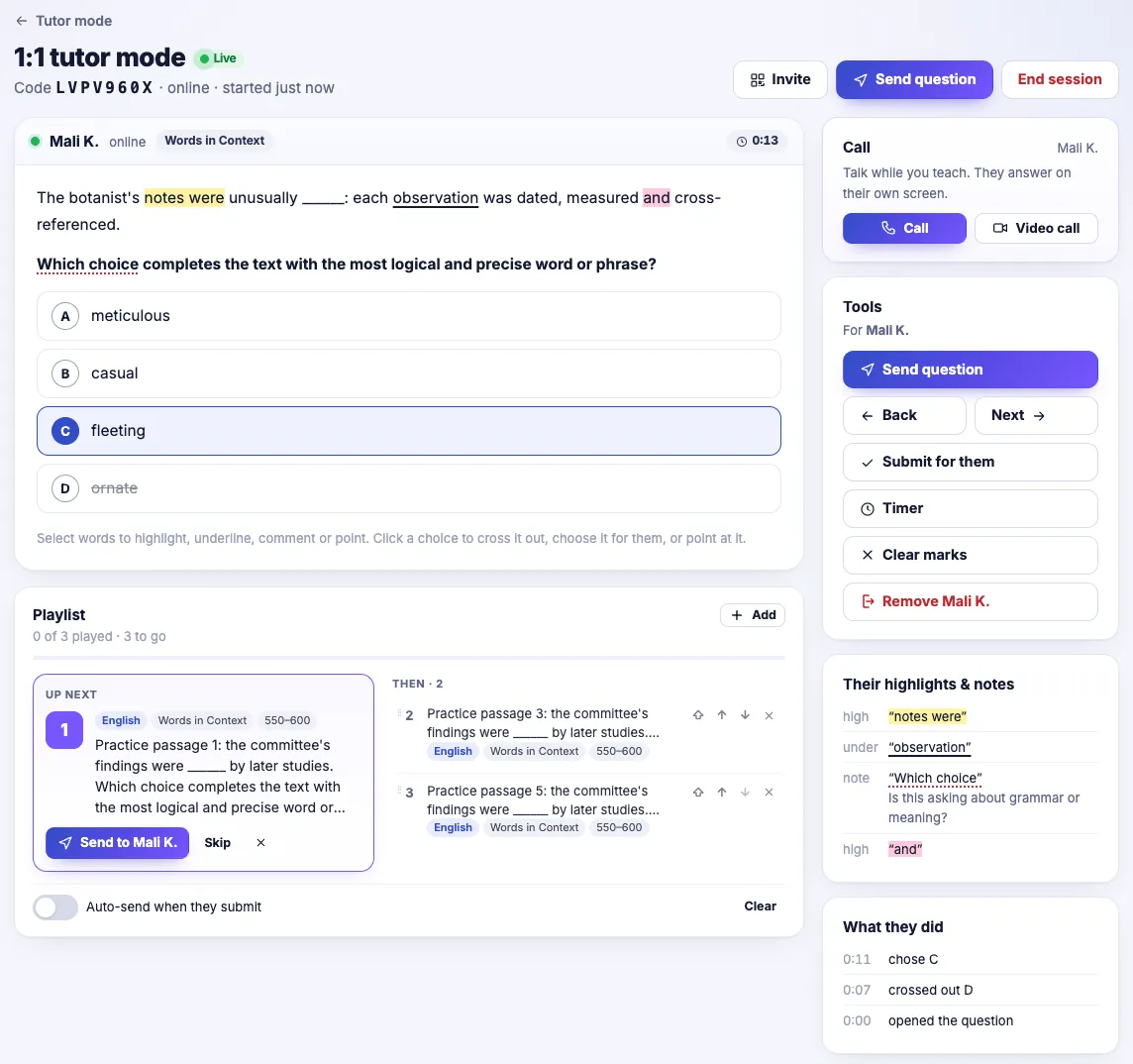
Tutor mode is live tutoring inside the Colorbook test screen. You see the student's screen, highlights, notes and pointer as they work, and you can put questions on their screen, mark things up and talk to them. It comes in two forms: 1:1, included from the Coach plan, and whole-class mode, included from Classroom.
Starting a session
1:1 by invite link
For a one-to-one lesson, send the student an invite link. When they open it, they are asked to consent to the session before you can see their screen. That consent step matters: it makes clear to the student, and to a parent watching, exactly when the tutor can see their work.
Whole-class mode
In whole-class mode you see every student's screen at once. It is the live equivalent of walking round a classroom looking over shoulders, except you can do it online and see the whole room at once. Use it for a short timed drill where you want to spot who is stuck, then help the students who need it.
What you see
You see what the student sees, live: the question, the choice they are leaning towards, what they have highlighted, any notes, and where their pointer is. That last detail is more useful than it sounds. A pointer hovering between B and D for twenty seconds tells you the student has narrowed it down and is unsure, which is the moment to ask "what is the difference between those two?"
Putting questions on their screen
You can put any question directly on the student's screen. For a planned lesson, build a question playlist in advance, a list of questions in the order you want to teach them, and work through it:
- Send next moves the student to the next question when you are ready, so you can talk through each one before moving on.
- Auto-send after they submit moves them on as soon as they answer, which suits a stretch of independent practice while you watch.
A good pattern for a 60-minute lesson: a playlist of about 12 questions on one topic. Take the first four with Send next, talking through each; switch to auto-send for the next six while you watch quietly; finish with two hard ones back on Send next.
Marking up their screen
While a question is on the student's screen, you can:
- highlight part of the passage or question, for instance the phrase that decides the answer;
- comment, leaving a short note on the screen;
- point at a choice, to draw attention to an option without selecting it for them.
Use these sparingly. The aim is to direct the student's attention, not to do the question for them. "Look at this sentence again" via a highlight usually teaches more than pointing straight at the right answer.
Timers
You can run timers during a session. On the real test students have about 71 seconds per Reading and Writing question and about 95 per Math question on average, so a timer is a simple way to build pacing into a lesson. Run a question untimed while teaching the method, then a similar one on a 90-second timer to see whether the method survives pressure.
Voice and video
Sessions include voice and video calls, so you do not need a separate meeting app running alongside. Students hear you explain while you highlight on their screen.
The AI button is hidden during human tutoring
Students normally have an "ask" button that lets them ask Colorbook AI about a question. During a tutor-mode session that button is hidden. The lesson is between you and the student, and a student who can ask for an explanation mid-question is not doing the thinking you are trying to watch.
Timetable and calendar feed
Lessons go on a timetable, and the timetable offers a calendar feed you can subscribe to in your calendar app, so lessons appear alongside the rest of your week. Scheduled mocks also appear on students' timetables (see running a class mock).
Running a good 1:1 session
- Before the lesson, look at the student's recent replays and pick one weak topic.
- Build a short playlist on it, easiest first.
- Open with a question they have recently got wrong, untimed. Watch before you speak.
- Teach the method on the next two using highlights and Send next.
- Switch to auto-send and a timer for a run of independent questions.
- End with one question harder than anything they have seen today.
What to watch for
- Watch first, talk second. The value of seeing a student's screen live is lost if you interrupt before they have committed to anything. Give them time to show you how they think.
- Do not over-annotate. A screen covered in highlights and comments is harder to read than the question was.
- In class mode, pick your moments. Seeing every screen is useful for spotting who is stuck. Trying to comment on everyone at once is not.
- Follow up with a set. After the lesson, assign a short set on the same topic so the replay shows you whether it stuck.
Questions teachers ask
- Which plans include tutor mode?
- 1:1 live tutoring is included from the Coach plan. Whole-class mode, where you see every student's screen, is included from Classroom.
- Does the student have to agree before I can see their screen?
- Yes. In 1:1 mode the student opens your invite link and consents to the session before you can see their screen.
- Can students ask Colorbook AI for help during a session?
- No. The AI ask button is hidden during human tutoring sessions.
- Do I need a separate video call app?
- No. Tutor mode includes voice and video calls.
Teach live on the test screen your students will sit, one to one or with the whole class.
See Colorbook for Educators