Exam day for a class mock: what to do before, during and after
A mock goes wrong in predictable ways: a missing accommodation, a flat battery, a student who never joined. Almost all of them can be caught before the countdown, or spotted in the first few minutes.
Exam day has three parts: before the countdown, while students are writing, and after they hand in. This checklist assumes you are starting a class mock together from the lobby, which is the closest thing to a test hall. Scheduled mocks, where each student starts within a window, are covered in running a class mock.
Before: the week and the morning
Set accommodations first
Check that every student who has extra time has it on their accommodation settings before the day. Their working time is then stretched automatically when the mock starts. You can also set extra time for a student in the lobby or the console, but doing it in advance means one less job with a room full of students waiting. Extra time and accommodations has the full table of timings.
Devices charged, notifications off
A full SAT-shaped paper is 2 hours 14 minutes of working time plus a 10-minute break at standard time, and longer with extra time. Ask students to arrive with devices fully charged and chargers to hand, and to turn off notifications. A notification is the most common reason a student leaves full screen without meaning to.
Explain full screen and exits
The mock opens in full screen after the countdown, and if a student leaves full screen, that exit is reported to you. Tell students this beforehand, plainly. Most students will not try anything; the point is that they know an accidental exit will be seen and that they should simply return.
Tell them how to join
Students join from the Class tab in Colorbook, where the mock appears, and then wait in the lobby until you start. Ask them to be in the lobby five minutes before the start time. Also tell them that the mock runs on the server: if a device restarts or the Wi-Fi drops, they sign back in and resume where they were.
Before checklist
- Accommodations entered for every student who has them.
- Start time, and how to join from the Class tab, sent to students.
- Devices charged, chargers to hand, notifications off.
- Students told about full screen, reported exits and resuming after a dropout.
- The room, or the call, booked for the longest timing in the class, not the standard one.
During: the proctor console
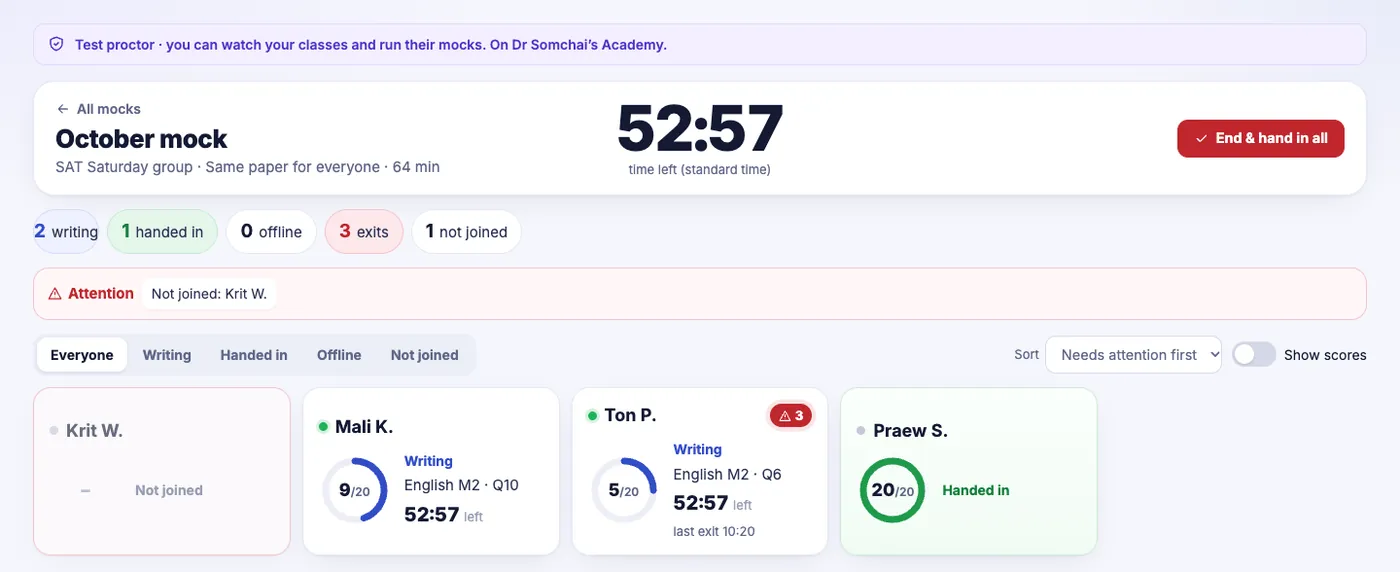
Once the mock is running, the console is where you, or a test proctor, watch it. It is worth knowing what each part is for before the day.
The countdown
When you start the mock, students see a 3-2-1 countdown and the test opens. The console then shows the time left at standard time in large type. Students with extra time have their own, longer clocks.
The Attention strip
Above the student cards, the Attention strip lists who needs you: students who have left full screen, students who have gone offline, and students who have not joined. Read it from left to right in the first five minutes. A student who has not joined after the countdown usually needs a message, not a wait.
Read exits in context. One exit lasting a few seconds is probably a notification. Several in a row is worth a quiet word, and worth noting for the review. The console tells you that an exit happened, and where in the paper, but not why.
Each student's card and drawer
Each student has a card with their progress, where they are in the paper and their time left. Open a student's drawer for the detail: their exits, when they happened, and their timing. This is also where you can give one student extra time during the mock if it was missed beforehand, as long as they have not handed in.
Ending the mock
Students hand in themselves, or their time runs out. If you need to stop everyone early, for example because the room is needed, End & hand in all submits every paper still open. Because it cannot be undone, it asks you to type END to confirm. Use it deliberately: a student with extra time who is still writing will be handed in too.
Test proctors (Academy)
On Academy, a test proctor can run the console for you. Proctors can only invigilate: they can start and watch a mock, but cannot make or change anything, such as sets, questions or classes. This suits a school where a member of staff supervises the room while the subject teacher teaches elsewhere.
After: results, replays and routes
Results arrive as students hand in. The temptation is to read the scores and move on. Three things are worth more.
- The questions most of the class missed. Start there, and replay three or four students on each. Replays and analysis explains what to look for: answer changes, crossed-out choices, highlights and time.
- The route each student took. On an adaptive paper, each student's result shows which Module 2 they got in each section and how many Module 1 questions they had right, for example "English: harder Module 2 (19/27 in Module 1, needed 15)". A student who missed the harder module by one question needs a different conversation from one who missed it by eight. See Module 2 and adaptive papers.
- The exit log. If a student's exits cluster around one part of the paper, look at their replay there. Sometimes it is a hard passage, not a distraction.
Review within a day or two while students remember the paper. A mock reviewed a week later teaches much less.
What to watch for
- Starting before everyone has joined. Check the Attention strip before you press start. A late joiner can still sit the paper, but loses the shared start.
- Mixed timings in one room. Students with extra time will still be writing when others finish. Plan where finished students go so the room stays quiet.
- Ending early by accident. The typed END confirmation exists for a reason. If someone else is running the console, make sure they know when the mock should end.
Questions teachers ask
- How do students join a class mock?
- From the Class tab in Colorbook, where the mock appears. They wait in the lobby until you start it, then see a 3-2-1 countdown and the test opens in full screen.
- What does the Attention strip show?
- Students who have left full screen, students who have gone offline, and students who have not joined, so you can deal with them first.
- Why does ending the mock ask me to type END?
- End & hand in all submits every paper still open, including those of students with extra time, and cannot be undone. Typing END prevents it happening by accident.
- Can someone else invigilate for me?
- On Academy you can add test proctors. They can start and watch mocks but can do nothing else in your account.
Run class mocks with a live proctor console, attention alerts and a replay of every student's paper.
See Colorbook for EducatorsMore for teachers
- Extra time and accommodations in class mocks
- Module 2 and adaptive papers: what teachers need to know
- A weekly routine for SAT classes: sets, replays, live lessons and a monthly mock
- Colorbook for Educators: your worksheets, in a real digital SAT test screen
- From PDF to practice set: turning worksheets into tests students can sit